Schedule studio
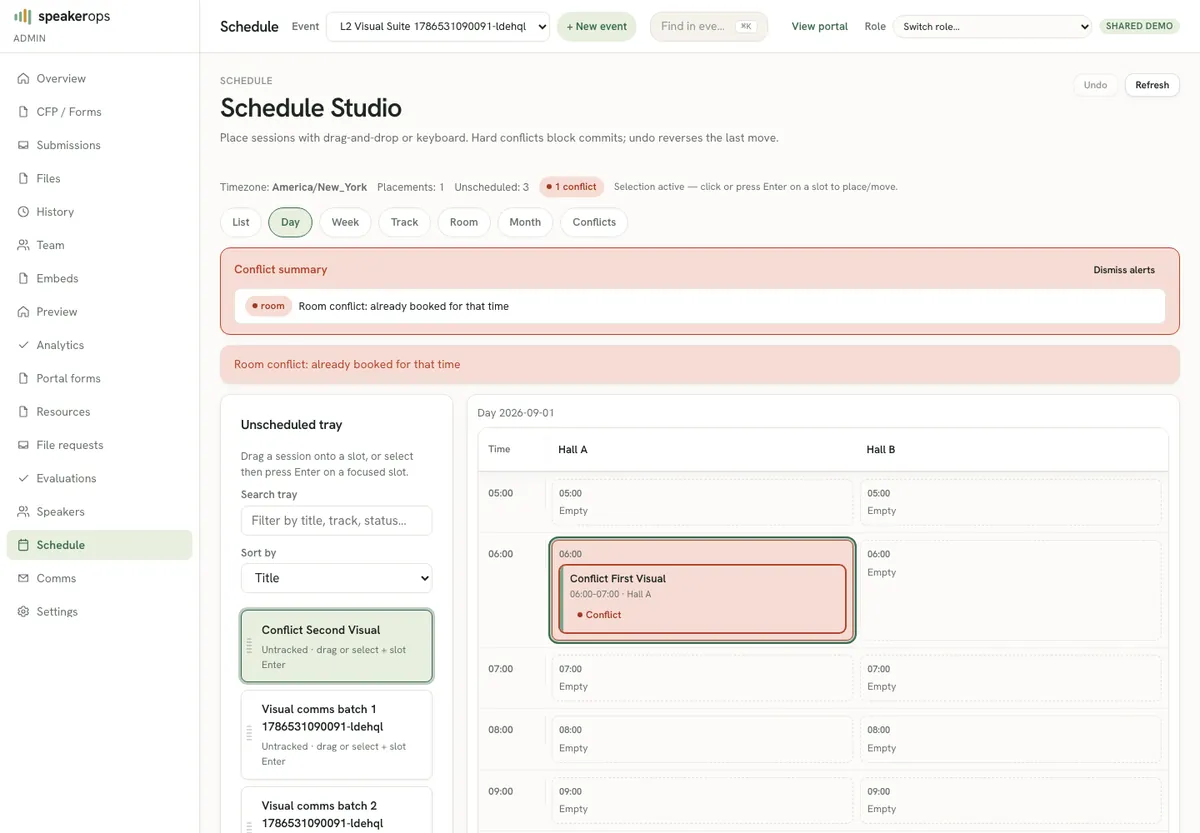
Place sessions into rooms and times with conflict detection from Admin → Schedule.
Where scheduling happens
Open Admin → Schedule (schedule studio). Sessions are program slots; placements assign room and time range. Hard conflicts such as double-booking a room or speaker surface as conflicts the operator must resolve. Soft preferences may appear as warnings depending on product rules.
Drag and drop (primary)
On the Day (and track/room) board, drag a tray session or a placed tile onto a time slot. The ghost follows the cursor; release on a cell to place or move. Release on the tray, toolbar, or outside the board cancels — you will see a short status toast if the drop missed a slot or the gesture was cancelled. Keyboard place (select then Enter on a slot) and the reschedule inspector remain available.
Place a session
Ensure rooms and tracks exist for the event. Create or select a session, choose room, start, and end in ISO-8601-compatible inputs the UI provides, and save. If the Worker returns a conflict, read the conflict list and adjust room or time.
- Confirm rooms and tracks for the event under settings or schedule setup.
- Open Admin → Schedule.
- Select or create the session to place.
- Choose room and time range, then save placement.
- If conflicts return, resolve them before announcing the grid.
CLI parity
Agents with schedule:write can place sessions via the CLI. Success exits 0. Hard conflicts exit 3 with conflicts in the JSON body. Missing scope exits 2. Always pass --json for automation.
speakerops schedule place \
  --event <eventId> --session <sessionId> --room <roomId> \
  --start 2026-09-01T10:00:00.000Z --end 2026-09-01T11:00:00.000Z
speakerops schedule list --event <eventId> --json
speakerops schedule unschedule --event <eventId> --placement <placementId>
Operator tips
Lock rooms before publishing a public grid. Place keynotes and constrained speakers first. Re-run readiness after large schedule moves. Unschedule instead of stacking overlapping drafts when exploring alternatives.