Speaker portal
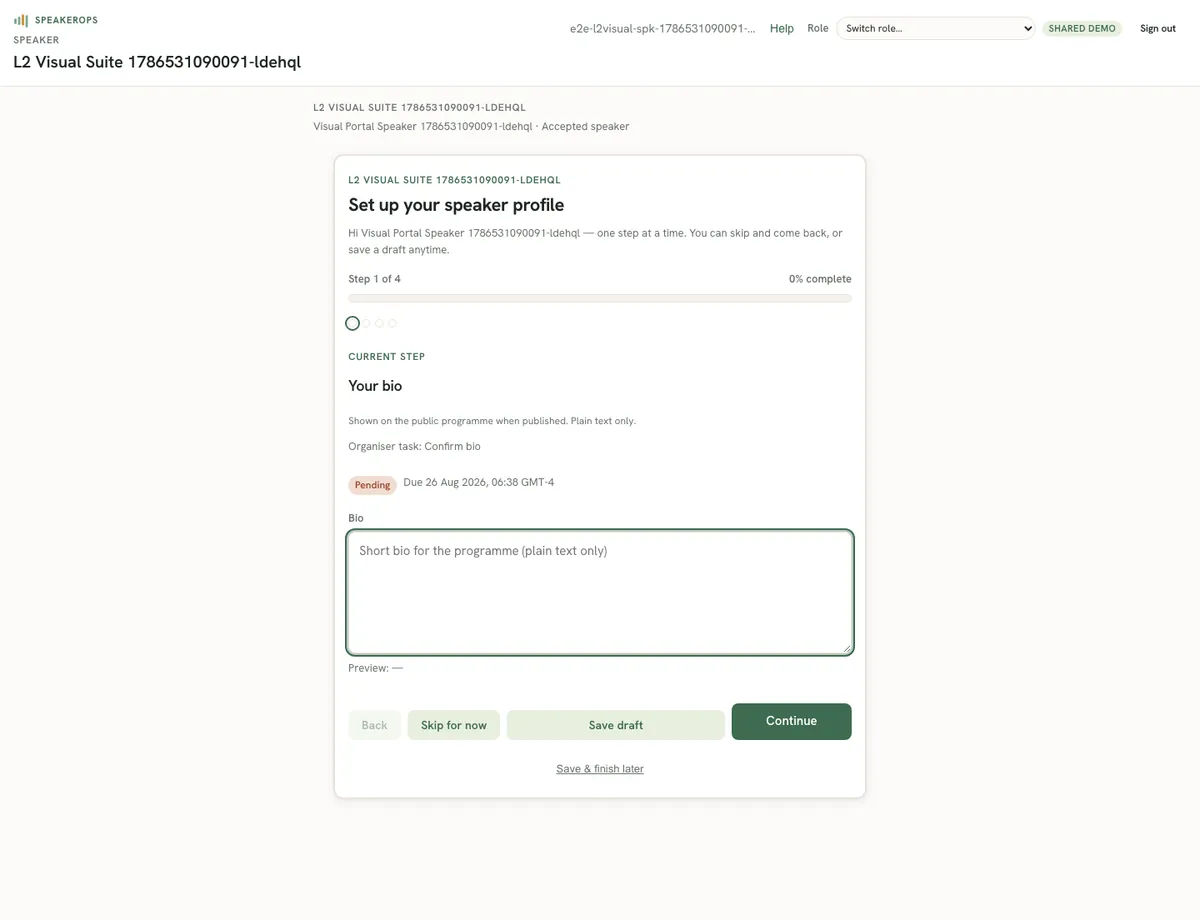
How accepted speakers complete tasks, upload files, and track what the program still needs.
Who uses the portal
Accepted speakers sign in with membership-aware magic links (acceptance provisions the membership — no allowlist) and open /portal. On first visit a stepwise onboarding wizard walks profile and task basics; speakers can save a draft, skip steps, or finish later. The home view shows tasks generated from templates at accept time or by later admin actions. Completing tasks updates server state that readiness and admin lists consume.
Complete tasks and uploads
Each task has a type and completion rule. Some tasks are checkboxes or short forms; others require file uploads such as headshots or slides through R2-backed file commands. Speakers only see their participation; they cannot browse other speakers' private work.
- Sign in with the speaker email and open /portal.
- Review the task list and due context if shown.
- Complete form-style tasks and save.
- For file tasks, upload the allowed file type and confirm completion.
- Refresh to verify tasks move to a completed state.
- Once a session is placed on the schedule, use “Add to calendar (.ics)” on the session card to download the calendar invite.
Calendar invites are a portal download (GET /api/portal/sessions/:sessionId/invite.ics, speaker-owned). Demo emails carry no attachments, so the portal download is the calendar path.
Operator responsibilities
Admins configure task templates before decision day so accepts generate the right work. Monitor readiness for overdue tasks. Use comms for reminders instead of ad-hoc spreadsheets when templates already model the work.
Files and storage
File metadata lives in the database; bytes live in R2 on configured hosts, while the hosted demo stores bytes as durable D1 rows (file_blobs) because R2 is not bound. Demo mode may disable public CFP uploads while still allowing controlled portal uploads depending on host configuration. Never commit raw credentials for R2 or account APIs.